


Thanks for visiting our December product updates blog. Take a look at what eformsign has been up to this month.
[New] Watermark feature added
We have added the Watermark feature that allows you to insert watermarks into documents for security and management purposes.
The Manage watermarks menu has been added under Manage company, where you can add and manage watermarks.
You can configure the watermark text, font, size, color, position, and opacity, as well as define the scope and timing for when watermarks appear.
Watermark scope
- Body
- Attachment
- Body + attachment
- All pages or first page only
Watermark timing
- View, save, or print
- Based on document status (In progress / Completed / Voided)
You can also use placeholders such as name and IP address to display tracking information for document leak prevention, or apply company logos and brand marks as background watermarks.
*Once a watermark is added and enabled, it is automatically applied to all documents according to the configured scope and timing.
✅ How to add a watermark
- Navigate to Manage company > Manage watermarks.
- Click the Add watermark button at the top right part of the screen.
- Configure the watermark name, watermark text, and other settings, and set when the watermark should appear.
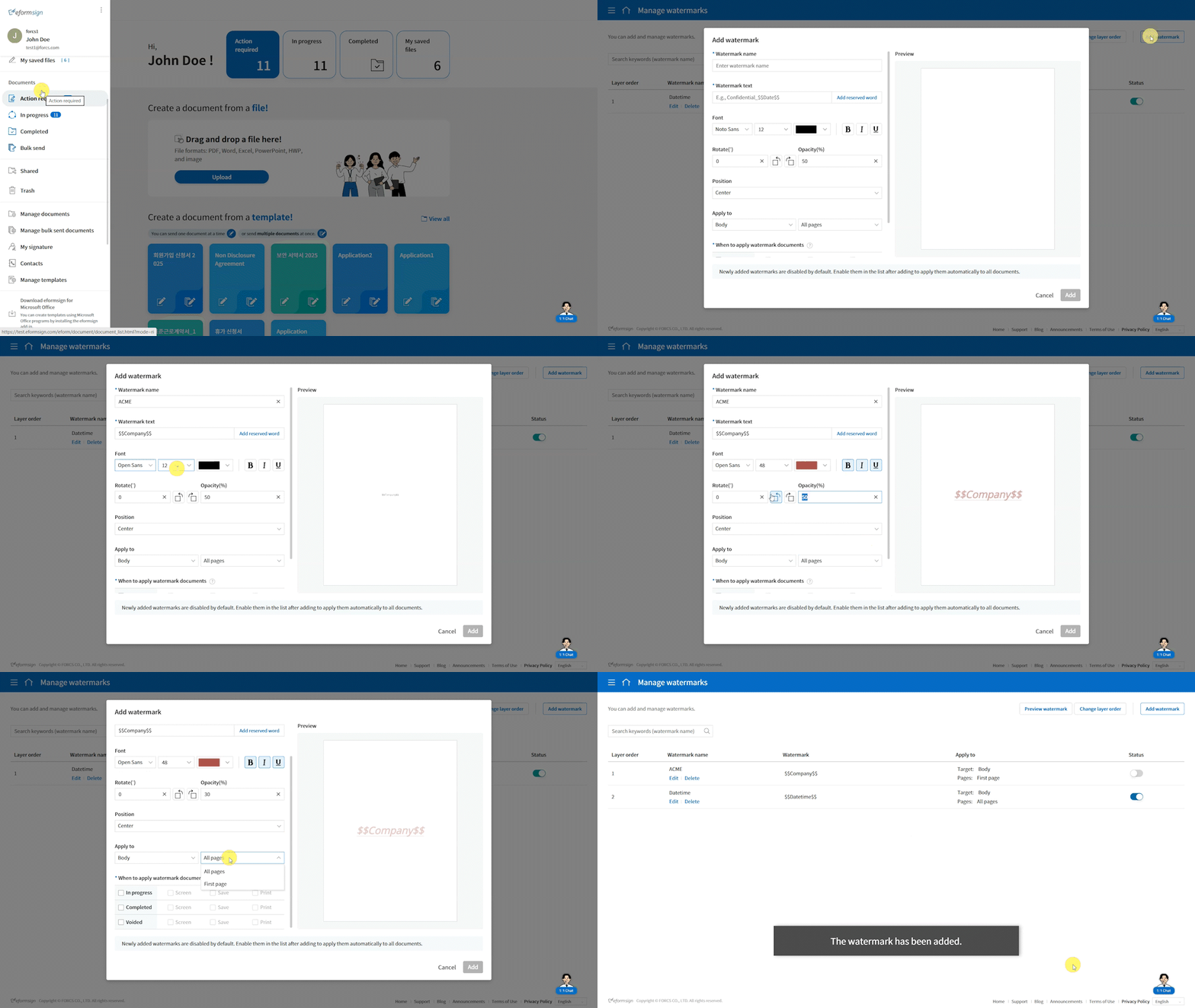
*Newly added watermarks are disabled by default. Enable them in the list after adding to apply them automatically to all documents.
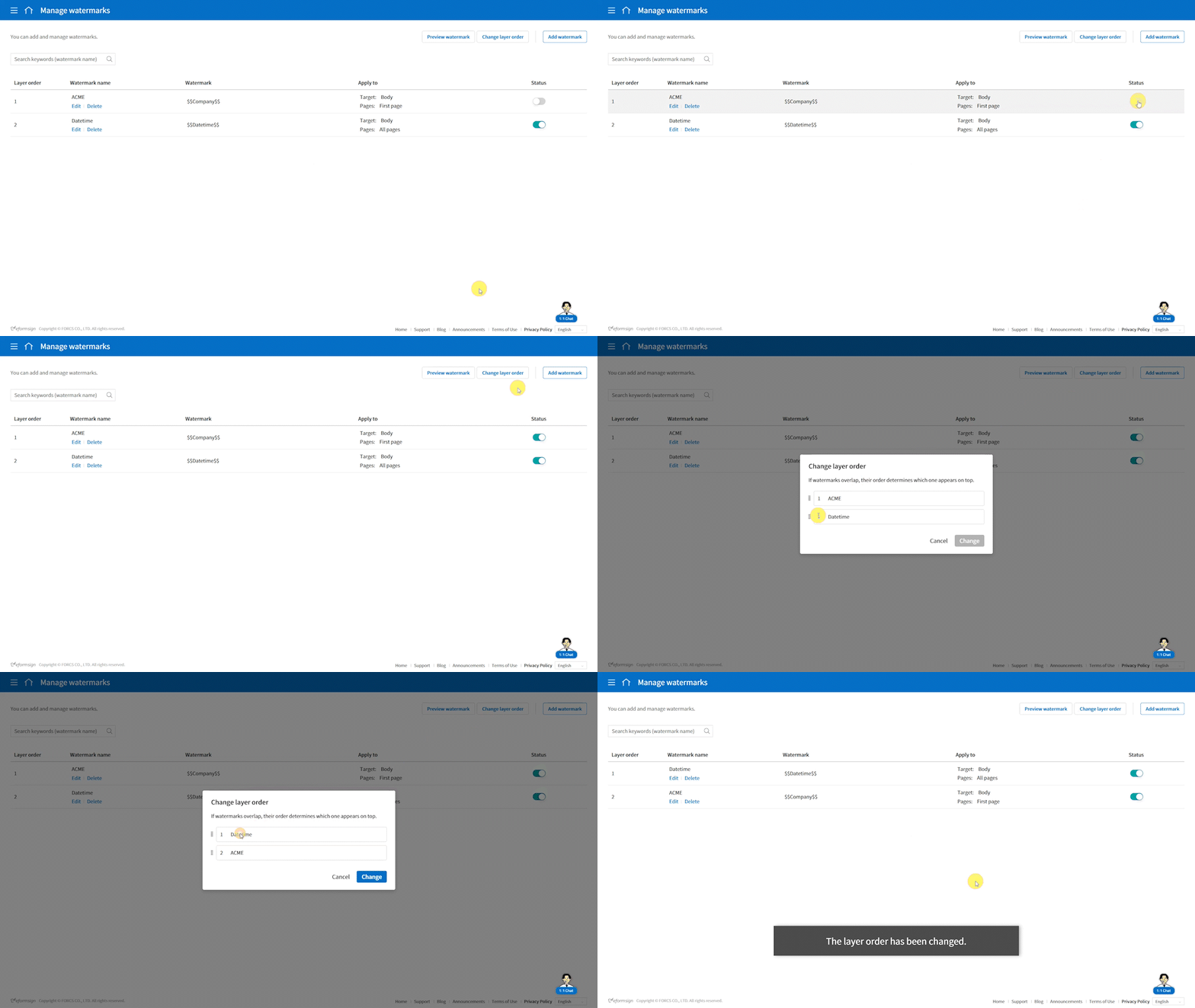
✅ How to change the watermark layer order
- Navigate to Manage company > Manage watermarks and enable the watermark you want to display.
- Click the Change layer order button at the top right part of the screen.
- Drag watermarks to reorder them, then click Change to save the changes.
*If watermarks overlap, their order determines which one appears on top.
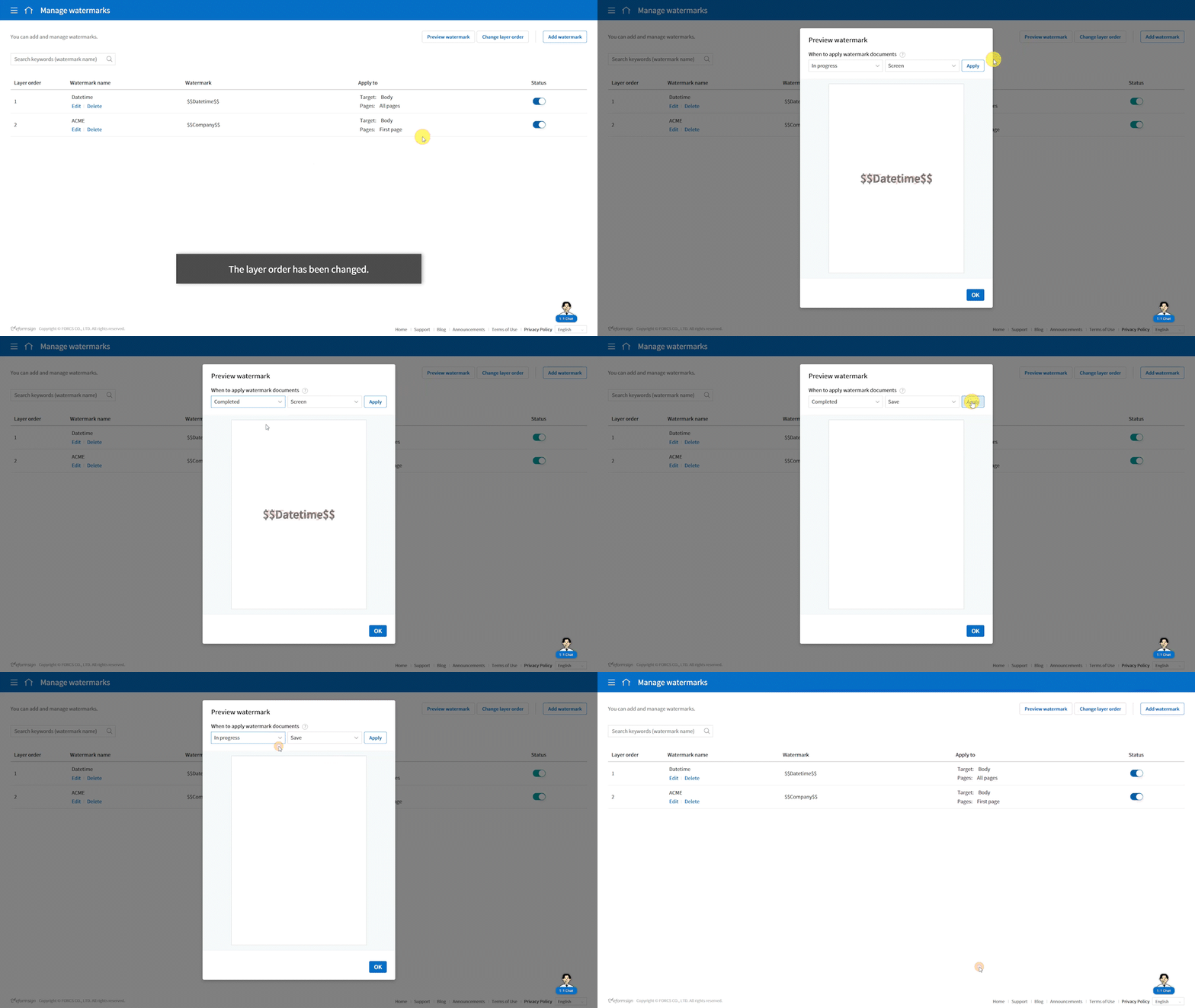
✅How to preview watermarks
- Navigate to Manage company > Manage watermarks and click the Preview watermark button at the top right.
- The watermark preview screen will appear.
- Select when to apply watermark to documents and click the Apply button to preview how the watermark will appear at that time.
[Enhancement] Members can review and sign documents without logging in
Previously, members were required to log in to view documents when they received a document request. With this improvement, members can now review and sign documents simply by clicking the document link, without logging in.
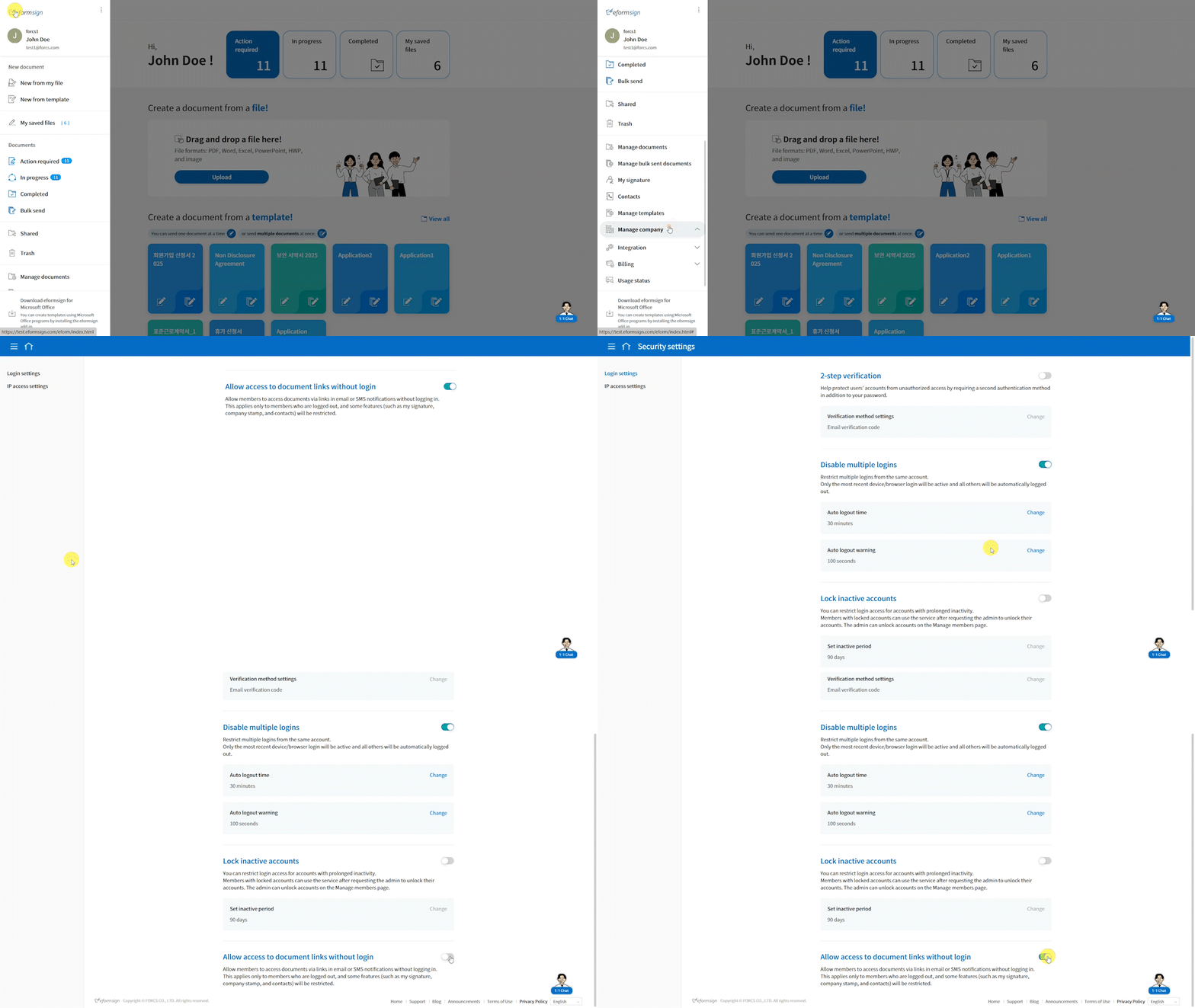
This feature can be enabled by company managers in Manage company > Security settings by turning on Allow access to document links without login.
Document activity completed without login is still fully recorded in the audit trail and activity history.
However, login is required when loading signatures or stamps, or when accessing the member list or contacts in the document send pop-up.
✅ How to enable document access without login for members
- Navigate to Manage company > Security settings.
- Enable the Allow access to document links without login option at the bottom of the screen.
We will continue to enhance eformsign with ongoing feature updates to provide a more secure and efficient electronic signature service. Stay tuned for more updates!